Product review: Logitech G502 X on Linux
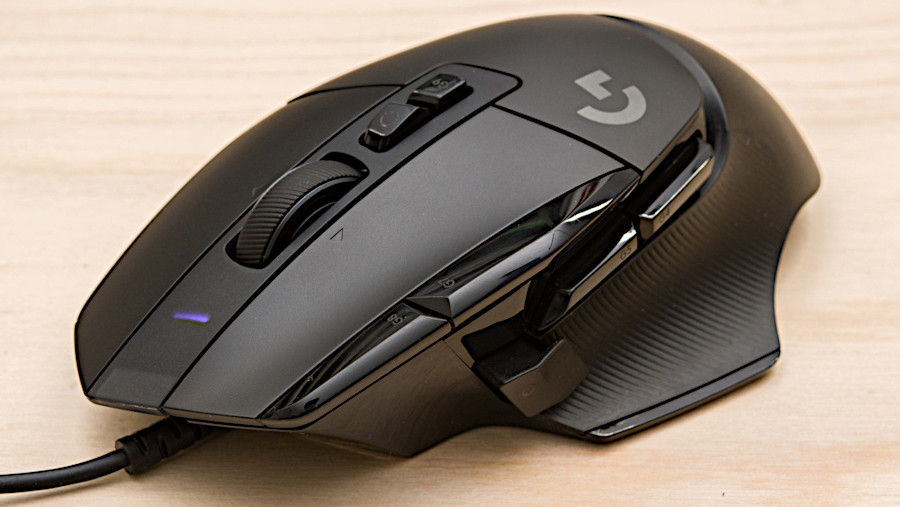
Table of Contents
intro...
This is a very early review and configuration guide for running the Logitech G502 X gaming mouse on Linux. The G502 X is an 11 button wired deal that seems to have undergone some changes over the course of it's rather long history, the newest version featuring optical switches for the primary and secondary buttons as well as a much larger D-shaped PTFE pad at the rear of the rodent.
I swore i would never buy anything from Logitech again since the life span of their products tends to nose-dive about the same time as the warranty does, however i really wanted a mouse with more buttons and decent hardware and the specs of the G502 X are hard to argue with. I could not find any other mouse that suited my desires and met my specs and had good reviews, and i searched for weeks, at least.
hardware...
The sensor used for the G502 X is apparently a Logitech design they call a "HERO 25K sub-micron" sensor which is supposed to be a "flawless" sensor, meaning that it tracks at a perfect 1:1 ratio with a completely flat acceleration curve. This is really important for gamers of the first-person shooter variety which includes myself, though only very lightly so.
The primary and secondary buttons are served by what Logitech tells us are "LIGHTFORCE hybrid optical-mechanical switches". Click latency is sub 3 ms. and these switches should last a very long time given they're optical. The feel of the primary and secondary switches is very much like the Huano blue shell, pink dot switches in that they have a noticeable actuation sound without being too loud and they have a decent, tactile feel. The pressure required to actuate them is fairly light, but not as light as the super-crap Omron 50m switches used on may gaming mice which are so light that they actually fatigue the hand much more since you cannot rest your fingers on the buttons without clicking them.
Compared with the Corsair M65 RGB Elite which i reviewed quite a while back, the Logitech, as i expected it would, feels cheap. It has a plastic-y, hollow feel to it whereas the Corsair feels more like it was machined from a solid block of aluminium, and indeed it does have an aluminium frame. With the Corsair there are no rattles or squeaks and everything feels quite precise, sans the mushiness of the scroll wheel when it's scrolled. The Logitech doesn't have any rattles either when it's shaken, yet the mouse wheel feels a bit sloppy somehow even though it's clicks are more tactile. The Logitech wheel does have left and right button functionality (side scroll) whereas the Corsair does not. Dropping the Corsair on my cloth mouse pad results in a sound like a brick hitting the pad whereas dropping the Logitech sounds more like the hollow plastic shell it essentially is.
On the plus side the Logitech features more buttons, the primary and secondary of which operate what should be vastly superior optical switches compared to the Corsair. On the top there are 8 programmable buttons, 3 being on the mouse wheel, as well as another 3 on the left side whereas the Corsair has only 8 total, 3 of them being on the left side. The extra buttons on the top of the Logitech are a significant plus for me. The 3 buttons on the side include the popular "sniper" button which, by default, reduces sensitivity, however the way Corsair engineered the thumb button on the M65 is far superior to the Logitech implementation. Corsair stuck the button right under where the thumb tip rests and used a switch which requires significantly more force to operate which, in my case, all but eliminated clicking it by accident while still making it easily and instantly accessible. Logitech, on the other hand, placed the button slightly ahead of where the thumb rests and used the same light switch as the rest of the buttons on the mouse. The result is that the button is not quite as accessible, yet is easily clicked accidentally when the mouse is rotated counter-clockwise in the hand which, for whatever reason, i tend to do quite often. I addressed this problem by sticking a bit of foam under the lip of the button which makes it harder to click accidentally. Logitech provides a magnetically attached switch cover that can be reversed to essentially move the button slightly closer or further from the thumb, as well as a cover which effectively eliminates the sniper button altogether. What they should have done instead is imitated Corsair's approach.
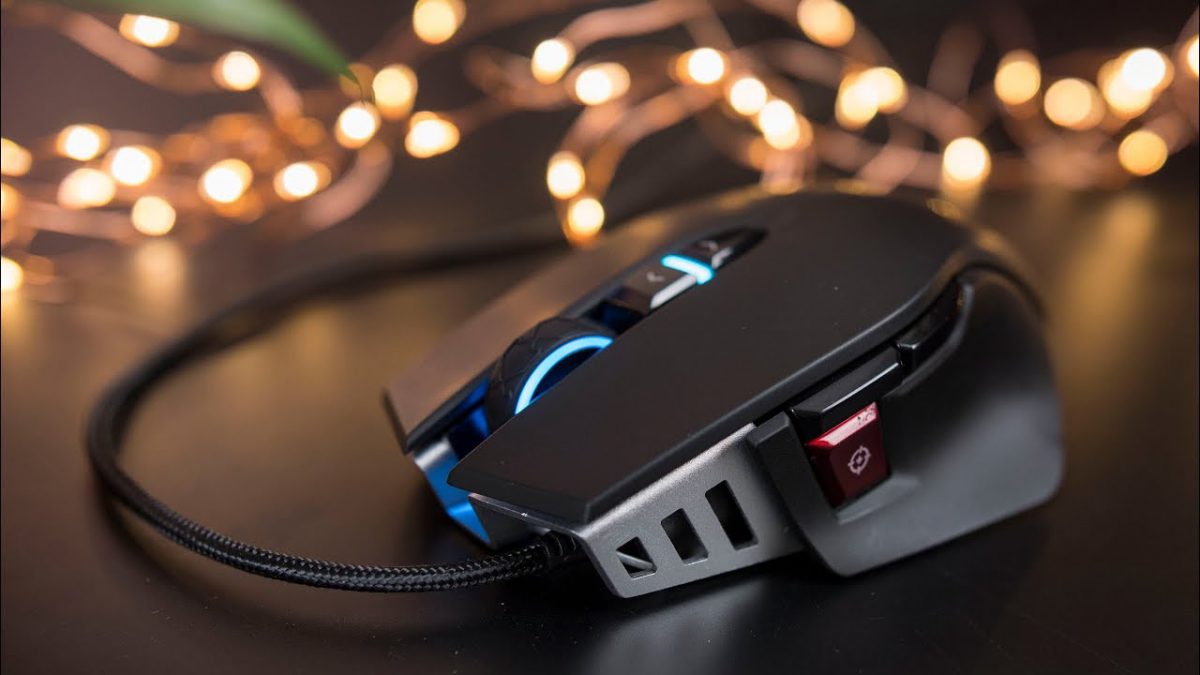
Logitech's G502 X is easier to lift off the pad than the Corsair for two reasons, one being that it's significantly lighter and the other being the shape of the sides of the mouse which conform better to the thumb and pinky fingers. Unlike the Corsair, there is no weight adjustment feature nor RGB lighting which is fine with me. I thought i'd miss the heft of the Corsair, even without its added weights, and though i did at first, a day later i can understand why people think the G502 is "too heavy". The latest fad in gaming mice is one of lightness, though i suspect many who take the time to experiment would find, as i did, that heavier is better, to an extent, because the mass acts as a damper which reduces hand shake.
The tactile feel of the Logitech mouse wheel when it's scrolled is noticeably superior to that of the Corsair. If scrolled very slowly the wheel is nearly silent, while scrolling it fast results in an audible, plastic-y sound, but not annoyingly so. The precision is also much better where, unlike the Corsair, it is very difficult to position the scroll wheel between its notches. Logitech also provides a purely mechanical switch just behind the wheel that toggles the wheel's scrolling mode between continuous and ratchet mode, a feature which i suppose could be handy when scrolling long documents, though i never use it. The ability to click the wheel left and right is a very welcome addition over the Corsair.
configuration...
Regarding the operation of these mice on a Linux-based OS, the Corsair is at a disadvantage, requiring the ckb-next software to program its buttons. This would be just spiffy except that ckb-next did not have the ability to write to the memory of the mouse when i last checked, thus a daemon is required to be running which likely introduces some latency. The Logitech, on the other hand, can be handled by libratbag and its bundled ratbagctl command-line utility which writes changes to the mouses memory and thus does not require a daemon. When you have a mouse with a sub-3 ms. click latency, why not take advantage of it, eh? Piper is the most popular GUI front-end for libratbag, however version 0.7 did not fully support the newest iteration of the G502 X, offering the ability to program only 8 of its 11 buttons. There were some other issues with it also. Libratbag however supports all 11 buttons but the assignments need to be done from the console and the syntax took me a while to figure out since the documentation of ratbagctl is lacking.
If you want to avoid the confusing syntax and lengthy commands when dealing with ratbagctl directly, you can use the RatBegger-G502X shell script i wrote which makes it much easier to configure and load mouse profiles.
The first step to binding the G502's buttons to keyboard keys, or any of the mice libratbag supports, is of course to install the libratbag package and its dependencies. After that we can gain some information about the device:
$ ratbagctl list
That will give us the device name which is needed to do anything with the rodent. In my case i have only one device that's supported by libratbag, so the output of the above comand is:
warbling-mara: Logitech G502 X
Now let's see what the default profiles looks like. Here i'm assuming the G502 is known as warbling-mara in ratbagctl's output, though it may be different in your case. You could also substitute 'Logitech G502 X', including the quotes since there's spaces in the name:
$ ratbagctl warbling-mara info
Here's the output from the above commend, though this is after i had configured it. I'm kind of skipping ahead here to show that ratbagctl can write to the wrong profile leaving people confused as to why their button assignments don't seem to work when they may simply need to set the next profile as active. Here i told ratbagctl to write to profile 0, but it was actually profile 1 that was programmed:
$ ratbagctl warbling-mara infowarbling-mara - Logitech G502 X Model: usb:046d:c099:0 Number of Buttons: 11 Number of Leds: 0Number of Profiles: 5Profile 0: (disabled)Profile 1: Name: n/a Report Rate: 1000Hz Resolutions: 0: 800dpi 1: 1000dpi 2: 1600dpi (active) (default) 3: 2400dpi 4: 3200dpi Button: 0 is mapped to 'button 1' Button: 1 is mapped to 'button 2' Button: 2 is mapped to 'button 3' Button: 3 is mapped to 'button 4' Button: 4 is mapped to macro '↓LEFTCTRL ↕W ↑LEFTCTRL' Button: 5 is mapped to 'button 5' Button: 6 is mapped to macro '↕LEFT' Button: 7 is mapped to macro '↕RIGHT' Button: 8 is mapped to macro '↕HOME' Button: 9 is mapped to macro '↕PAGEUP' Button: 10 is mapped to macro '↕PAGEDOWN'Profile 2: (disabled) (active)Profile 3: (disabled)Profile 4: (disabled)
To further confuse matters, in the output above profile 2 is listed as both 'active' and 'disabled' while it's actually profile 1 that is active. After i programmed the mouse i found that setting profile 0 as active doesn't seem to change anything, perhaps because no mappings were written to that profile. If i then set profile 1 as active, which it already is, further info commands list the correct profile as being active. Anyway, i think the trick is to start working with profile 0 and then assume that it will actually be profile 1 that is written to. If in doubt, keep using the info command to double check that you're writing to the profile you want it to write to.
$ ratbagctl warbling-mara profile active set 0
Next let's set the resolution (sensitivity/DPI) where <number> is a number corresponding to that desired from the "info" command earlier:
$ ratbagctl warbling-mara resolution active set <number>
Now let's set the USB report rate, in this case 500 Hz, but we could use any of the rates as reported by the "info" command:
$ ratbagctl warbling-mara rate set 500
OK, time to map some buttons to keyboard keys which will require knowing what the keyboard keys are known as by ratbagctl and this caused me another headache before i found the answer. In my case (Arch, Manjaro, or another Arch derivative) i found the names of the keyboard keys in /usr/include/linux/input-event-codes.h and it's quite a long list. It seems other Linux OSs may use a slightly different file name, such as input.h or whatever.
Once you find the necessary input file, assigning mouse keys to keyboard keys is fairy straightforward after you figure out the syntax. Following are some examples specific to the G502 X.
Bind mouse button 10 (labeled G7 on the mouse) to the Backspace key:$ ratbagctl warbling-mara button 10 action set macro KEY_BACKSPACE
Bind mouse button 9 (labeled G8 on the mouse) to CTRL+W:$ ratbagctl warbling-mara button 9 action set macro +KEY_LEFTCTRL KEY_W -KEY_LEFTCTRL
By referencing the key names in the input-event-codes.h file along with the output from ratbagctl warbling-mara info you should be able to figure out the rest. Following are most of the key names in my case:
Click to expand
KEY_0
KEY_1
KEY_2
KEY_3
KEY_4
KEY_5
KEY_6
KEY_7
KEY_8
KEY_9

KEY_A
KEY_B
KEY_C
KEY_D
KEY_E
KEY_F
KEY_G
KEY_H
KEY_I
KEY_J
KEY_K
KEY_L
KEY_M
KEY_N
KEY_O
KEY_P
KEY_Q
KEY_R
KEY_S
KEY_T
KEY_U
KEY_V
KEY_W
KEY_X
KEY_Y
KEY_Z

KEY_F1
KEY_F2
KEY_F3
KEY_F4
KEY_F5
KEY_F6
KEY_F7
KEY_F8
KEY_F9
KEY_F10
KEY_F11
KEY_F12
KEY_F13
KEY_F14
KEY_F15
KEY_F16
KEY_F17
KEY_F18
KEY_F19
KEY_F20
KEY_F21
KEY_F22
KEY_F23
KEY_F24

KEY_FN
KEY_FN_1
KEY_FN_2

KEY_FN_F1
KEY_FN_F2
KEY_FN_F3
KEY_FN_F4
KEY_FN_F5
KEY_FN_F6
KEY_FN_F7
KEY_FN_F8
KEY_FN_F9
KEY_FN_F10
KEY_FN_F11
KEY_FN_F12

KEY_KP0
KEY_KP1
KEY_KP2
KEY_KP3
KEY_KP4
KEY_KP5
KEY_KP6
KEY_KP7
KEY_KP8
KEY_KP9

KEY_KPASTERISK
KEY_KPCOMMA
KEY_KPDOT
KEY_KPENTER
KEY_KPEQUAL
KEY_KPJPCOMMA
KEY_KPMINUS
KEY_KPPLUS
KEY_KPPLUSMINUS
KEY_KPSLASH

KEY_APOSTROPHE
KEY_BACKSLASH
KEY_BACKSPACE
KEY_CAPSLOCK
KEY_COMMA
KEY_COMPOSE
KEY_DELETE
KEY_DEL_EOL
KEY_DEL_EOS
KEY_DEL_LINE
KEY_DOLLAR
KEY_DOT
KEY_DOWN
KEY_END
KEY_ENTER
KEY_EQUAL
KEY_ESC
KEY_EURO
KEY_GRAVE
KEY_HOME
KEY_INSERT
KEY_INS_LINE
KEY_LEFT
KEY_LEFTALT
KEY_LEFTBRACE
KEY_LEFTCTRL
KEY_LEFTMETA
KEY_LEFTSHIFT
KEY_LINEFEED
KEY_MACRO
KEY_MINUS
KEY_MUTE
KEY_NUMLOCK
KEY_PAGEDOWN
KEY_PAGEUP
KEY_PAUSE
KEY_POWER
KEY_RIGHT
KEY_RIGHTALT
KEY_RIGHTBRACE
KEY_RIGHTCTRL
KEY_RIGHTMETA
KEY_RIGHTSHIFT
KEY_SCALE
KEY_SCROLLLOCK
KEY_SEMICOLON
KEY_SLASH
KEY_SPACE
KEY_SYSRQ
KEY_TAB
KEY_UP
KEY_VOLUMEDOWN
KEY_VOLUMEUP
final thoughts...
As mentioned earlier, the G502 X feels quite a bit cheaper than the Corsair M65, however that is not necessarily an indication as to its longevity. With the exception of the Corsair, for a want of more buttons, i tend to keep mice for many years and absent some catastrophic failure with the Logitech, i will likely hang on to it. At worst i can envision having to break out the soldering iron and replace some of the switches, but not the primary and secondary switches which should last longer than i will if Logitech did anything right with them. As of 19-Dec-2025 i've had no problems with the mouse.